From your first vendor enquiry to the final seating chart, Wedding Companion keeps everything in one place. On your phone, offline, completely private.
5 beautiful colour themes + dark mode
Sage
Ivory
Rose
Navy
Terracotta
Everything you need
Seven sections, zero spreadsheets.
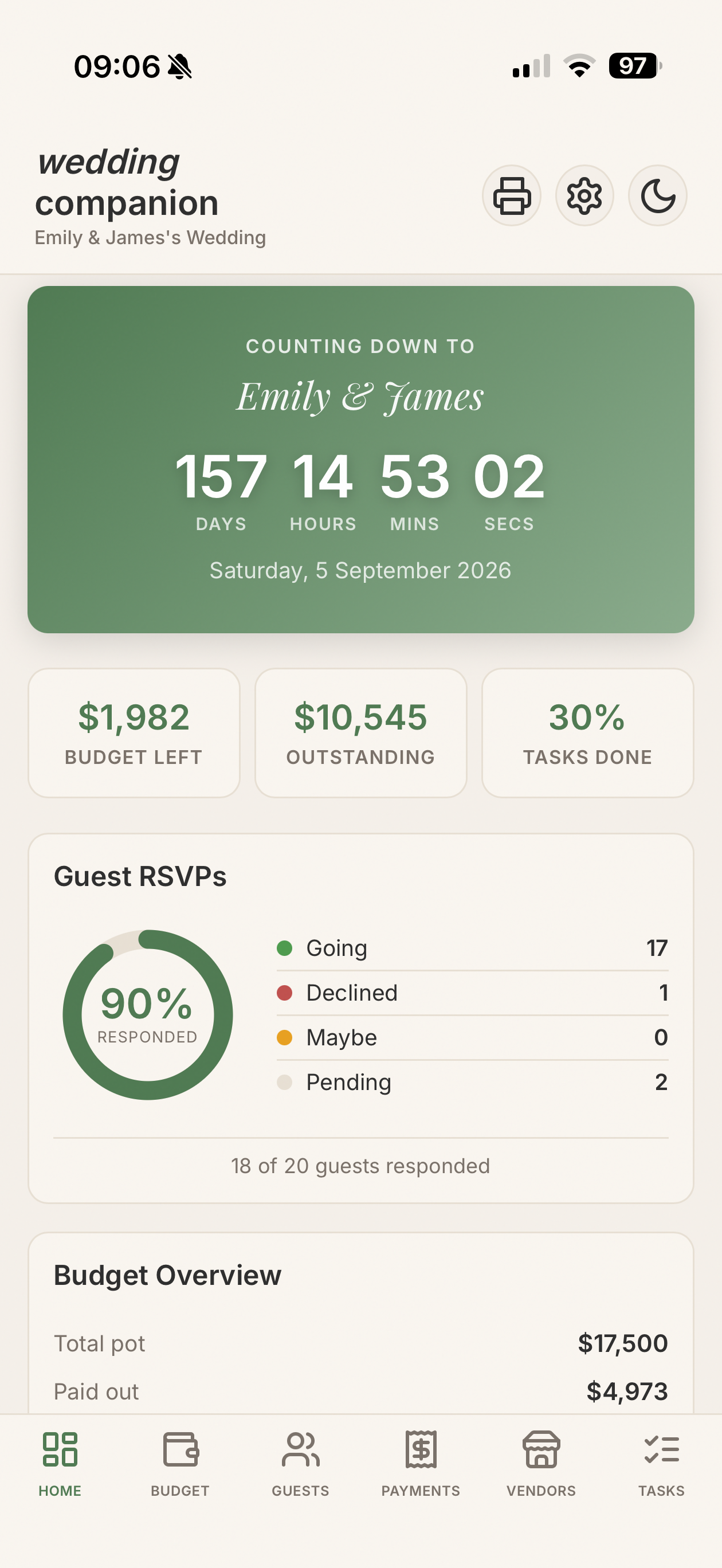
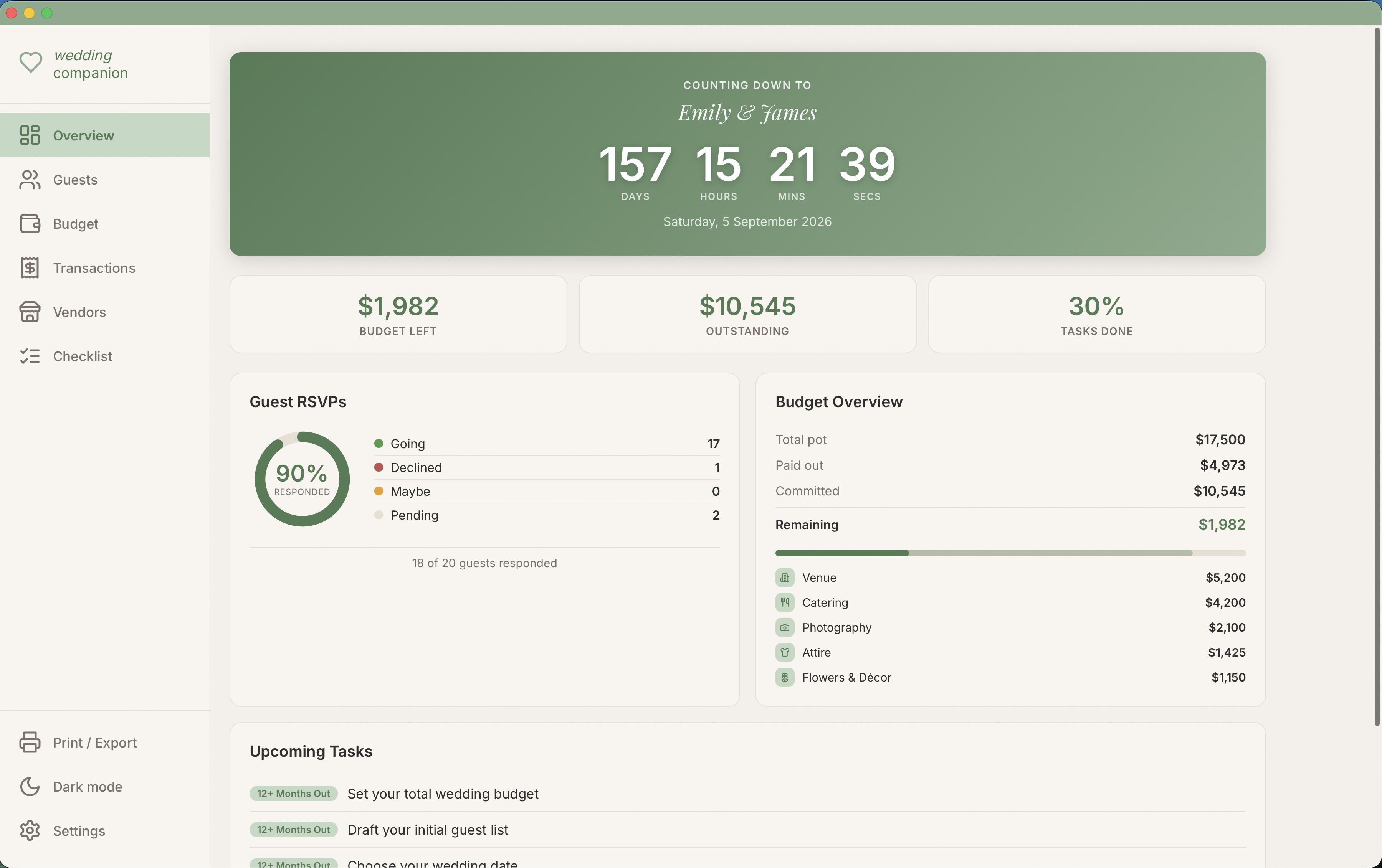
Live Countdown DashboardSee exactly how many days until the big day. Budget summary, RSVP totals, and task progress at a glance.
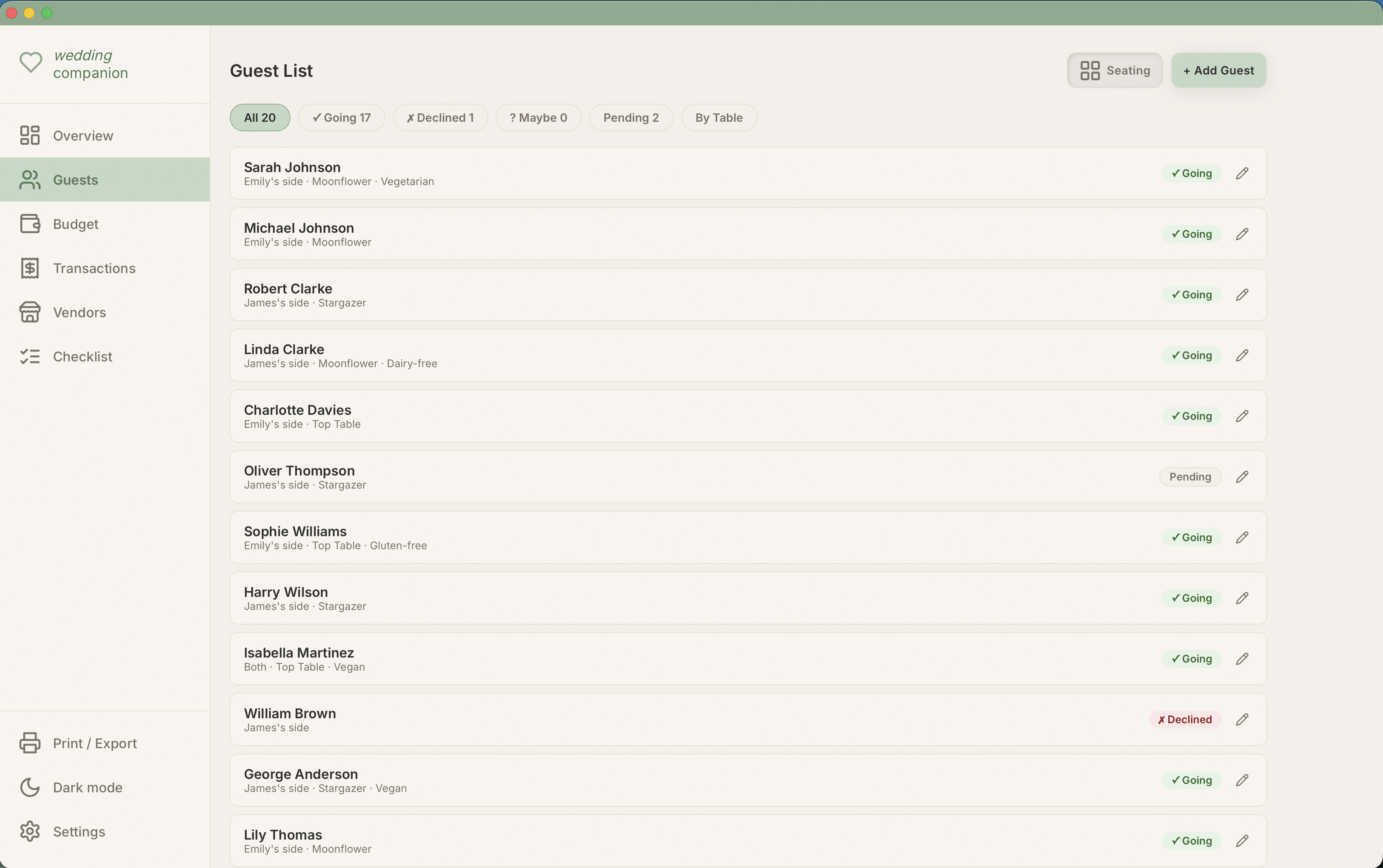
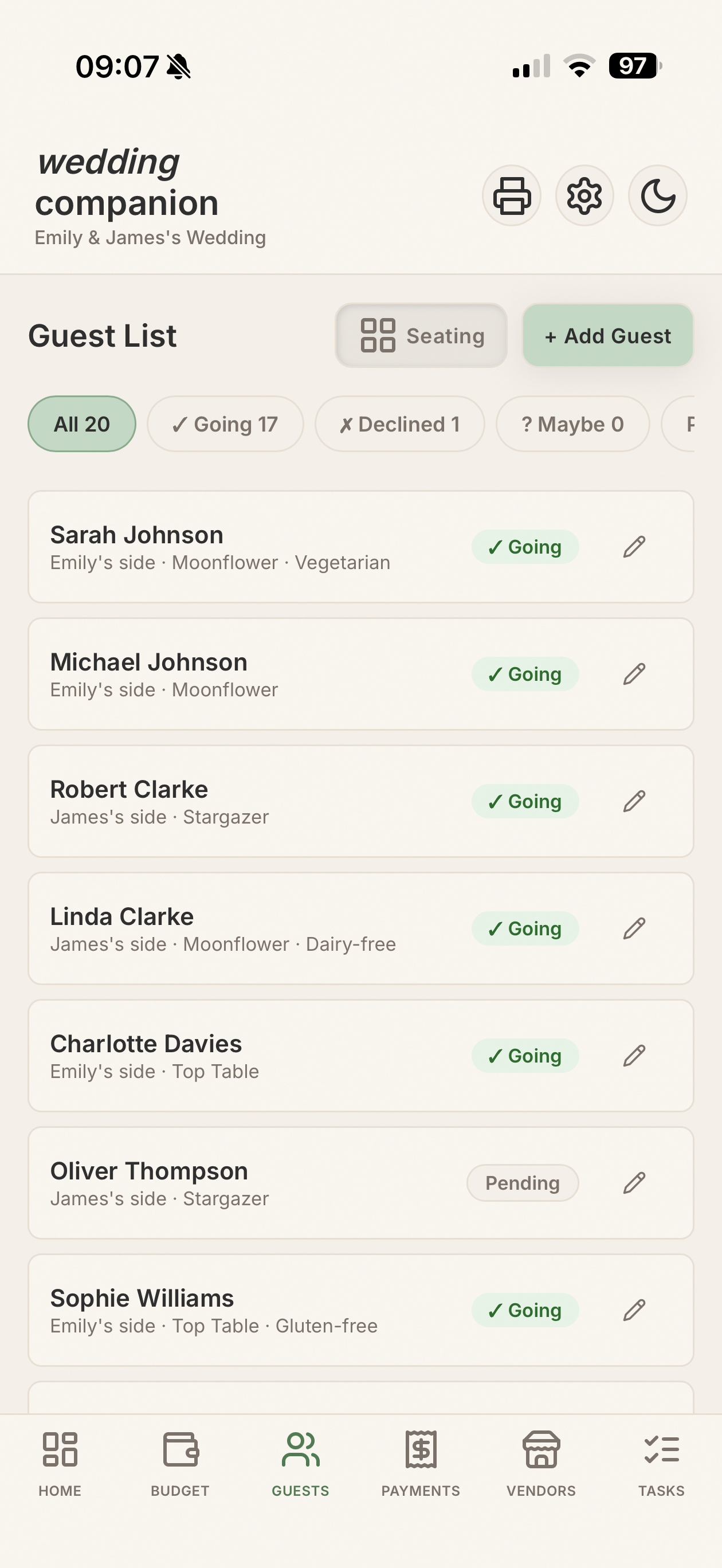
Guest List ManagerRSVP status, dietary requirements, plus-ones and family side. Filter and search in seconds.
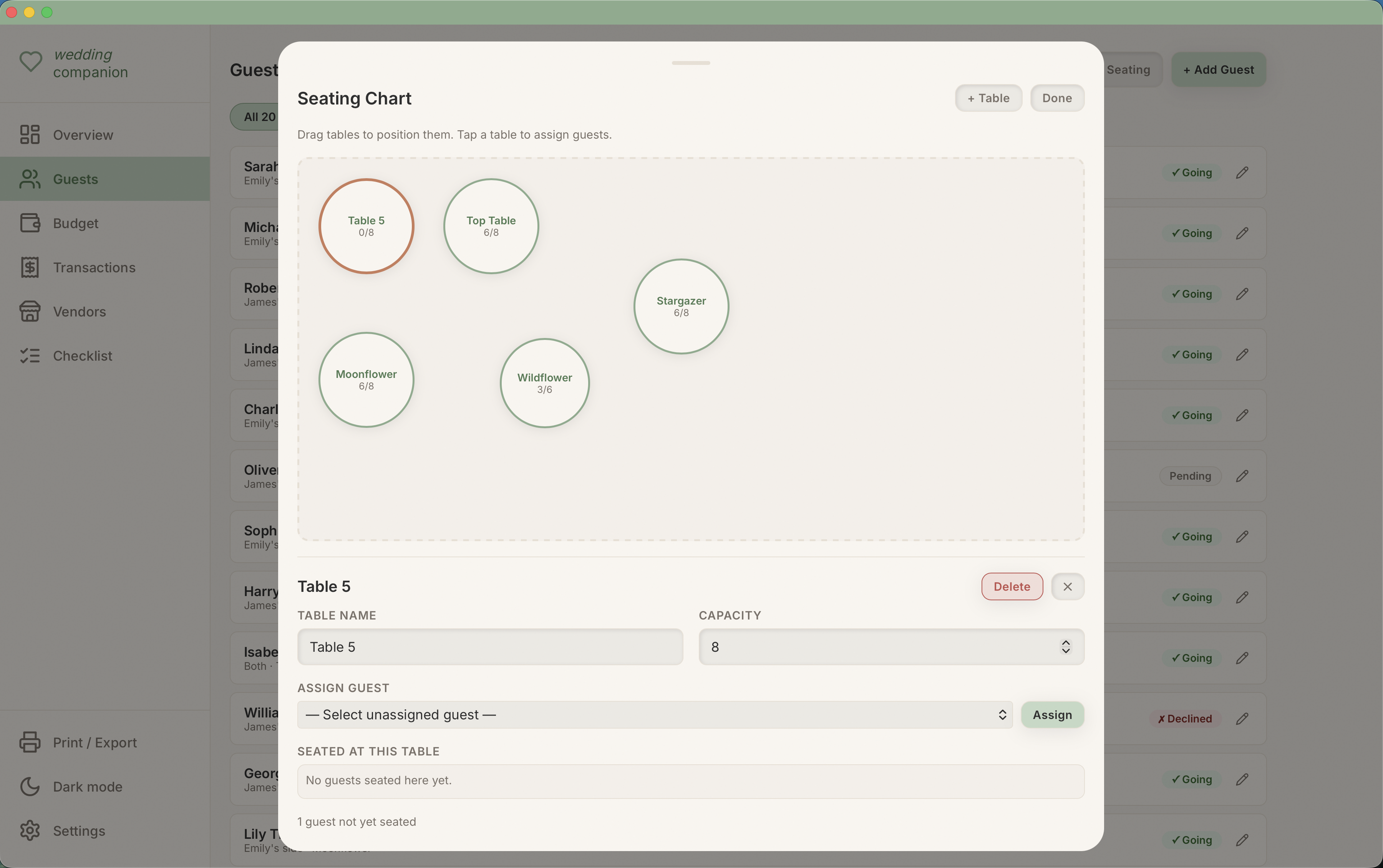
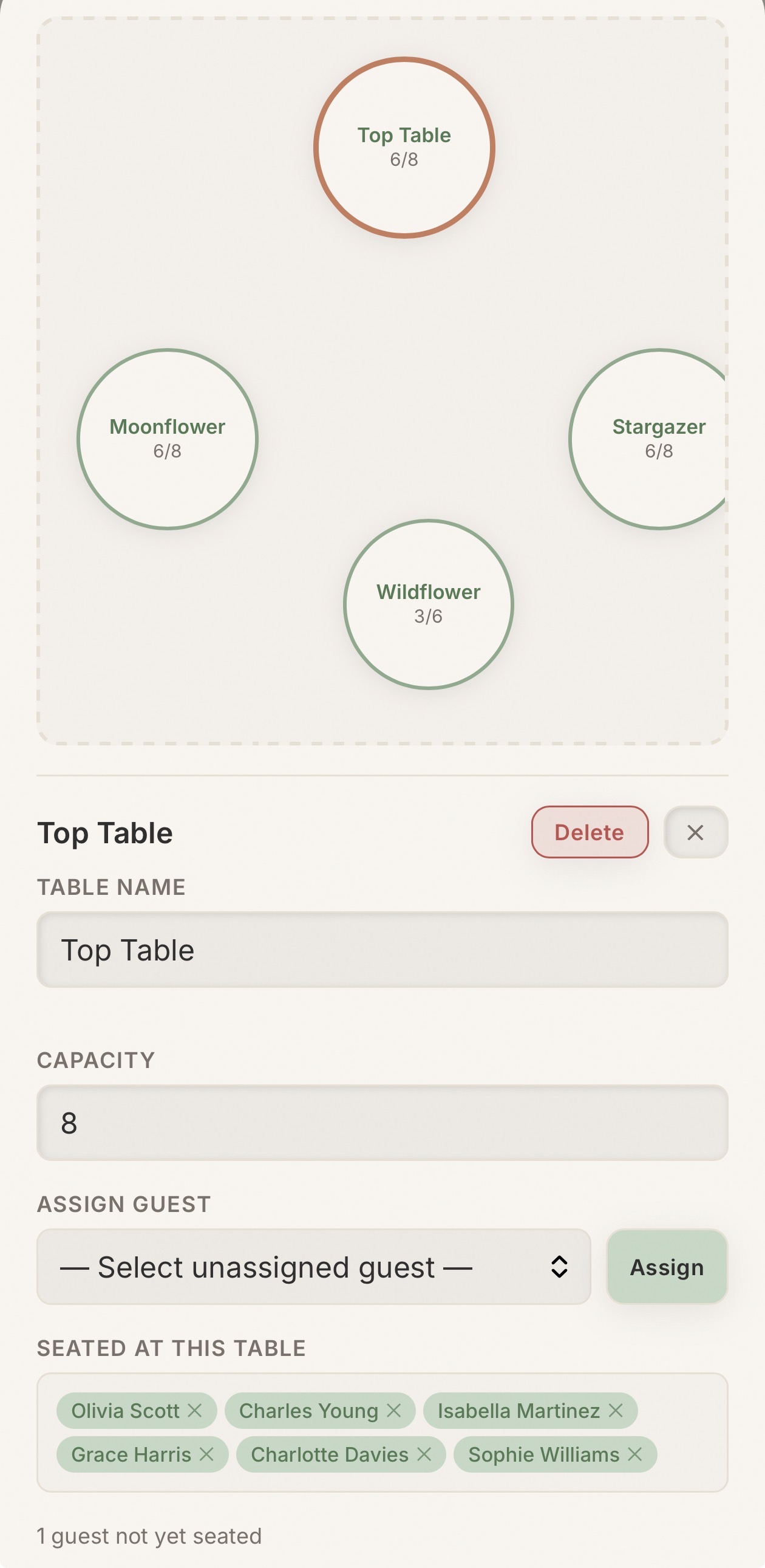
Interactive Seating PlannerDrag and drop tables, set capacities, and assign guests with a tap. See fill rates at a glance.
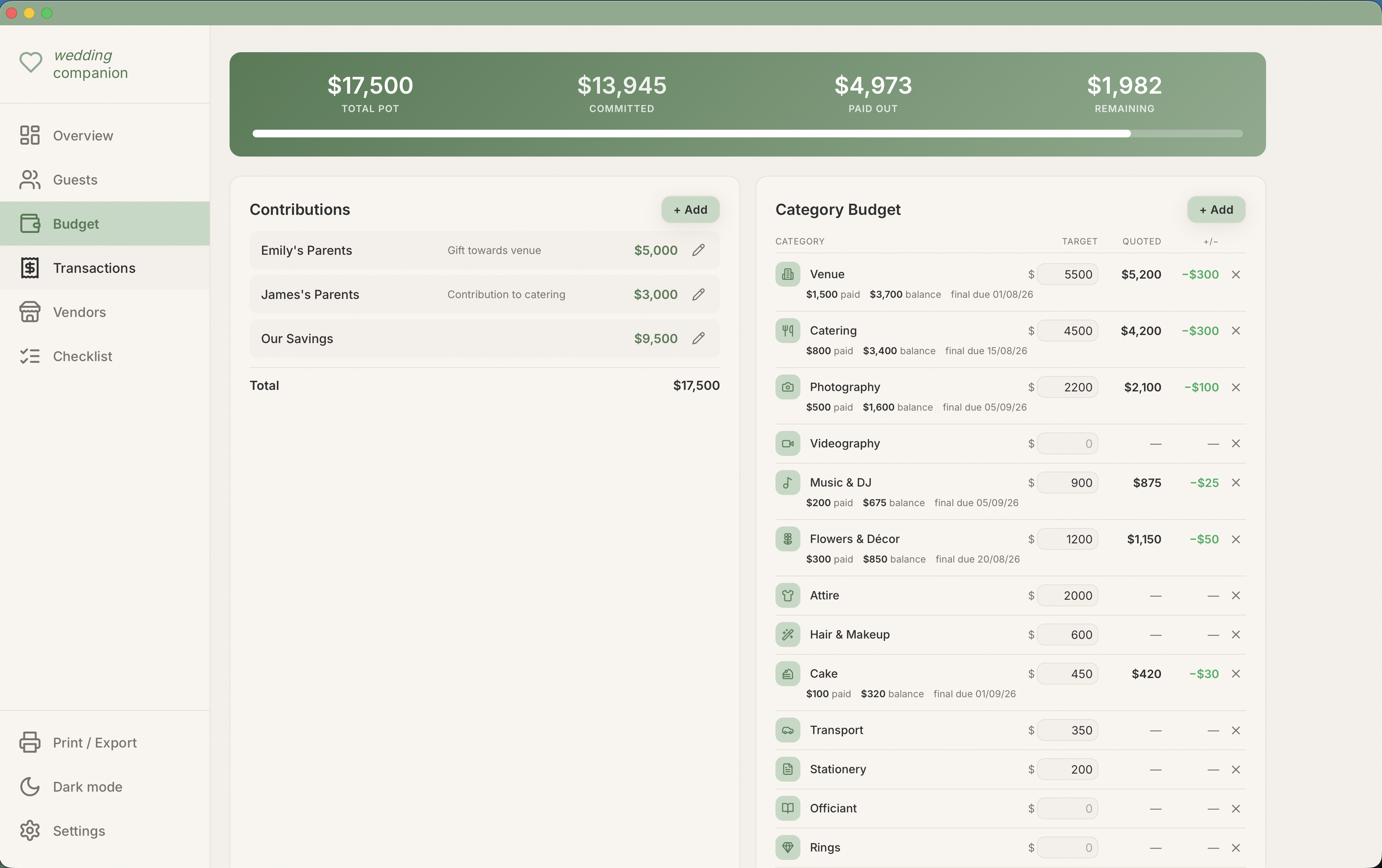
Budget TrackerSet your total budget, break it by category, and track quotes vs planned. Variance column shows exactly where you stand.
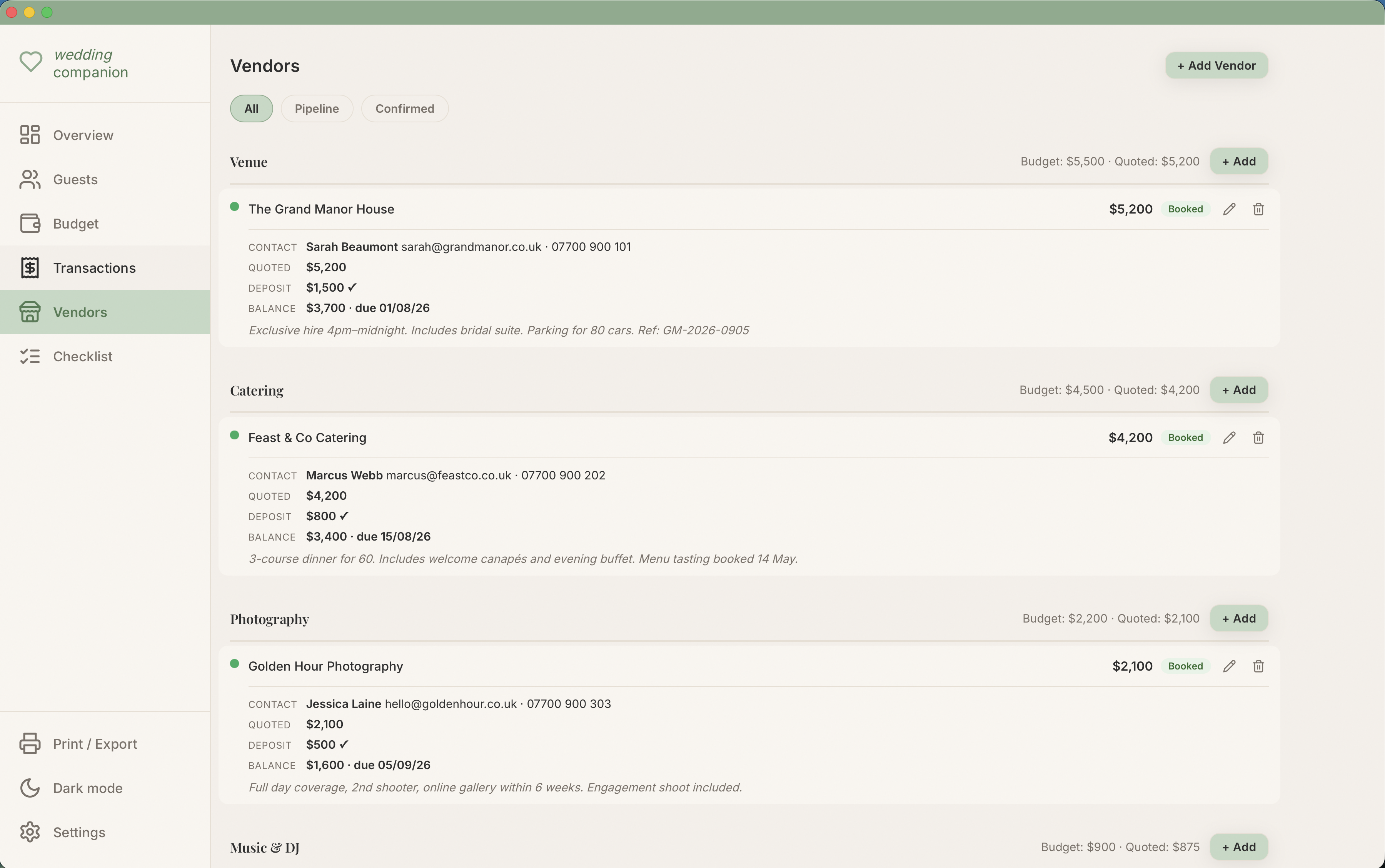
Vendor ManagerContact details, quoted price, deposit paid, balance due and booking notes. All in one place.
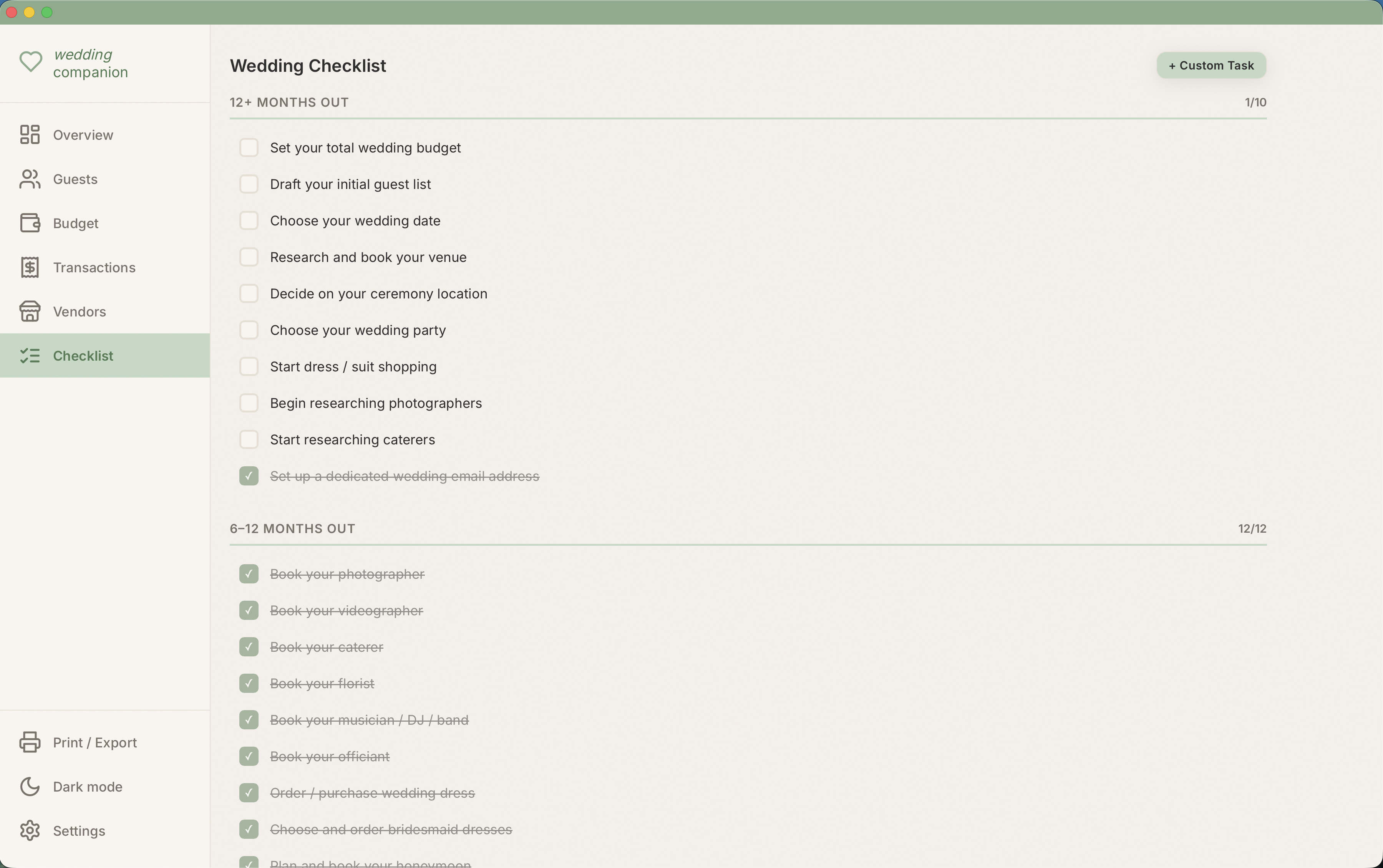
Pre-loaded ChecklistA full task timeline from 12 months out to the morning of the wedding. Add your own custom tasks.
Print & Save as PDFPrint any section straight from the app. Perfect for sharing with your coordinator or partner.
Budget Companion
Your money, your rules.
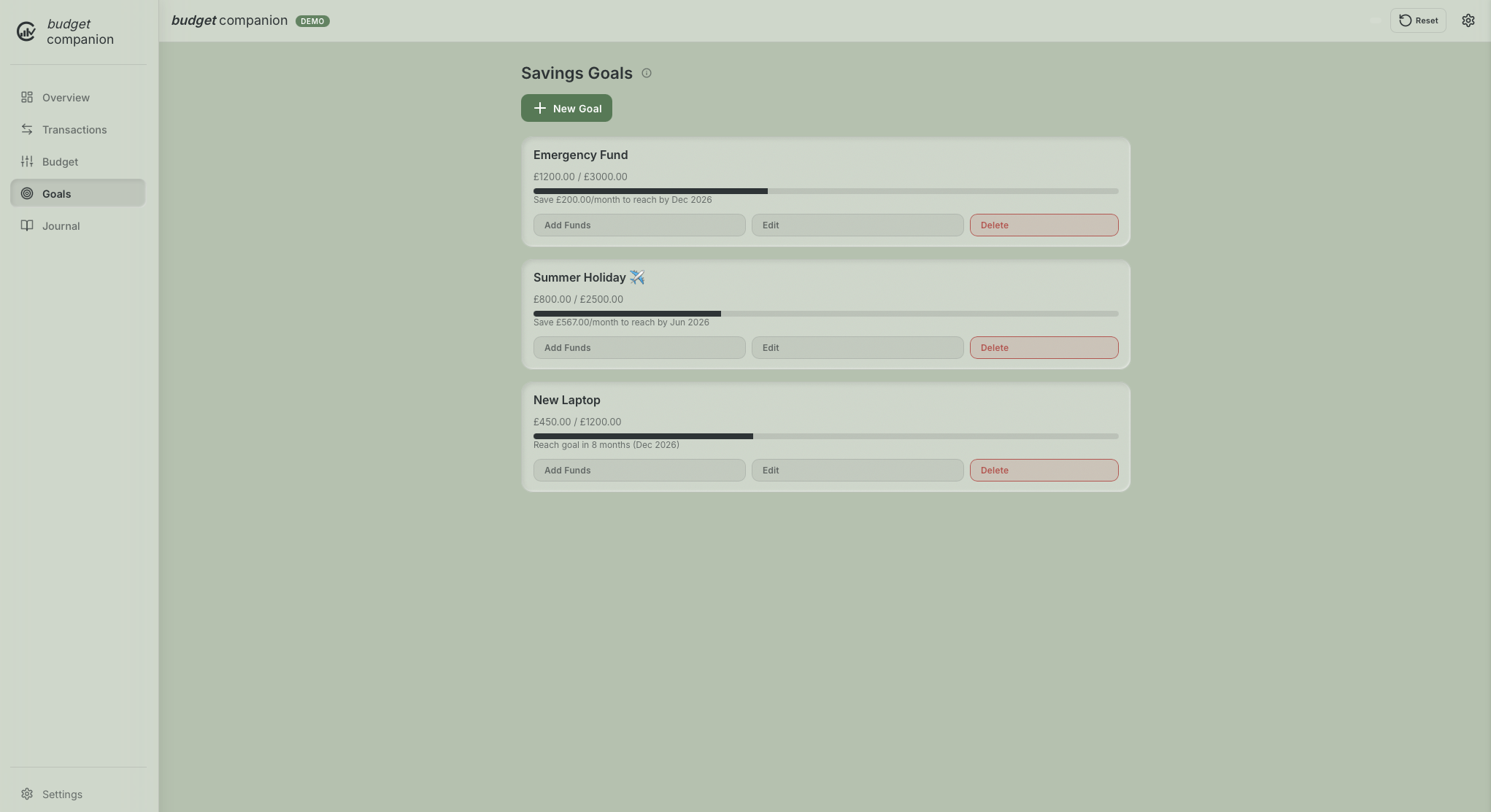
A calm, private budget tracker that feels like a premium journal. Track spending, set saving goals and watch your finances improve without handing your data to anyone.
4 matte colour themes + dark mode
Sage
Sand
Dusk
Terracotta
Dark
Features
Stop guessing. Start knowing.
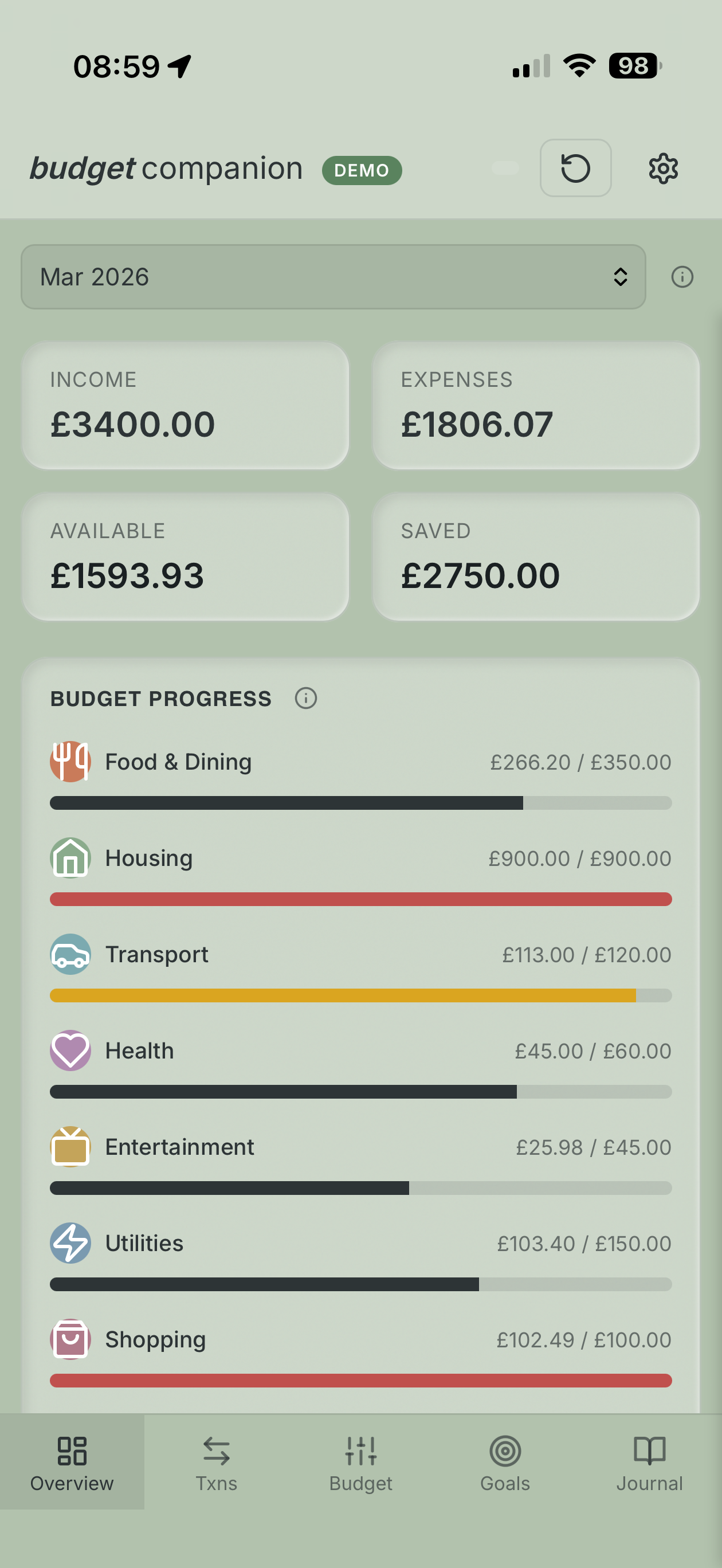
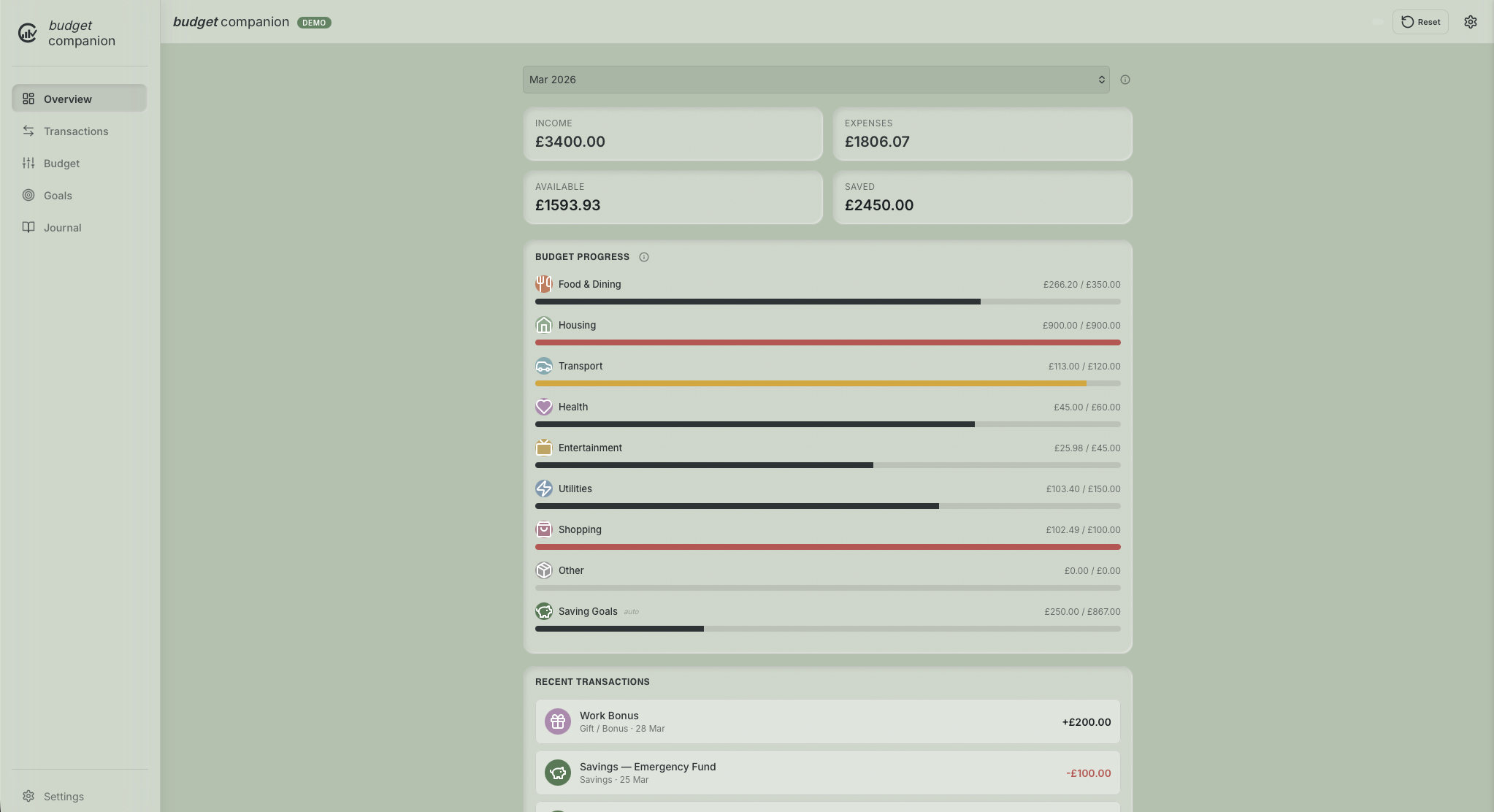
Overview DashboardYour total balance, monthly spending, income and remaining budget, all on one beautiful screen.
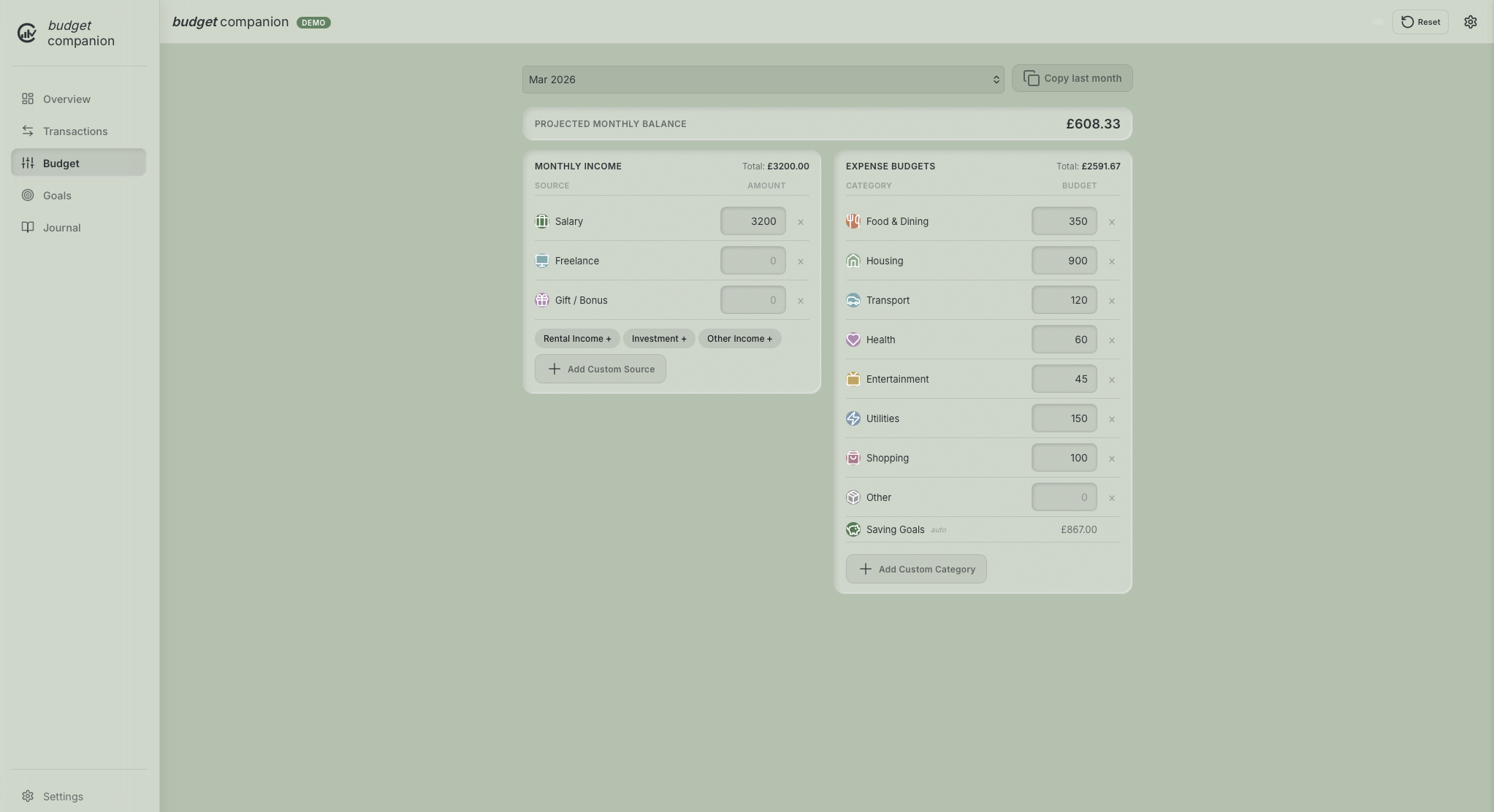
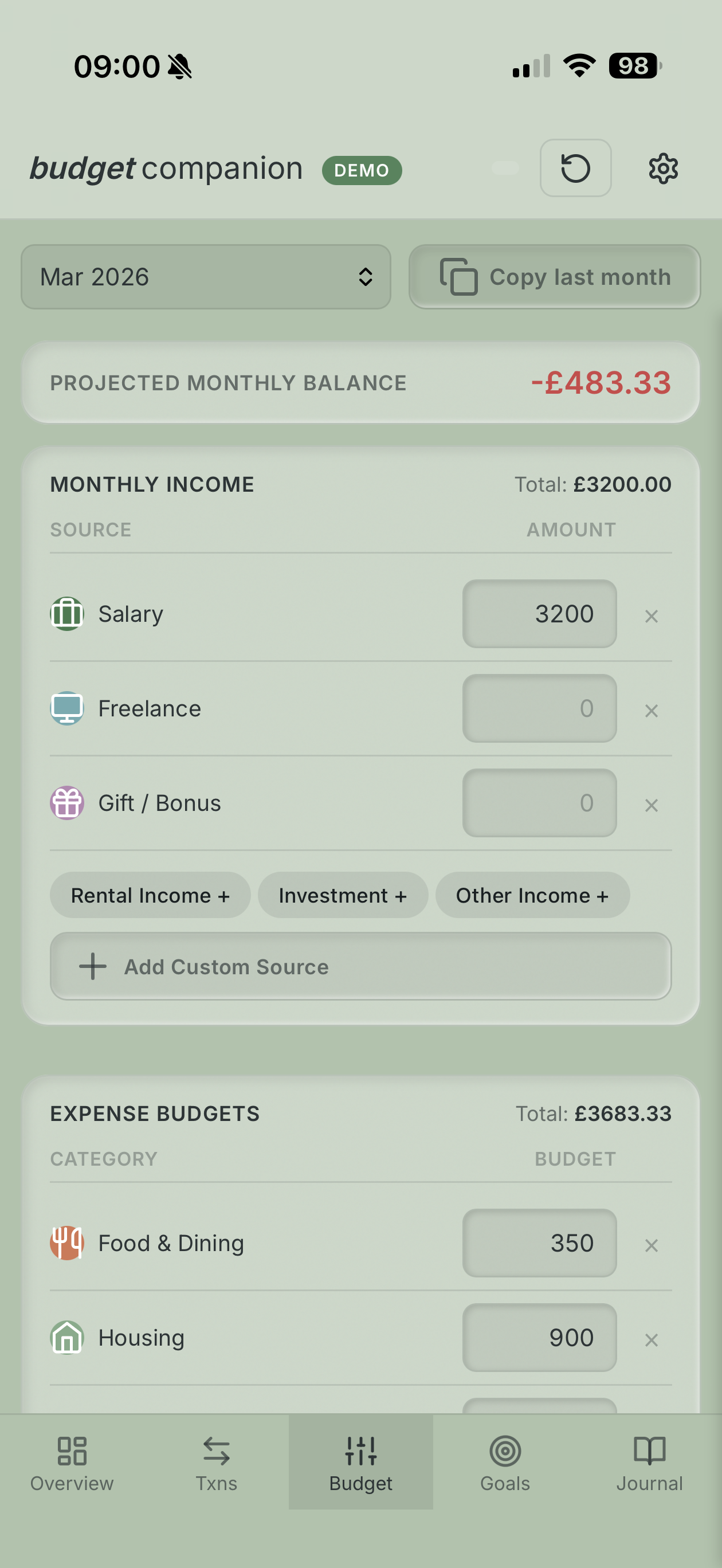
Budget CategoriesSet budgets per category: groceries, rent, dining out, subscriptions. See what's on track at a glance.
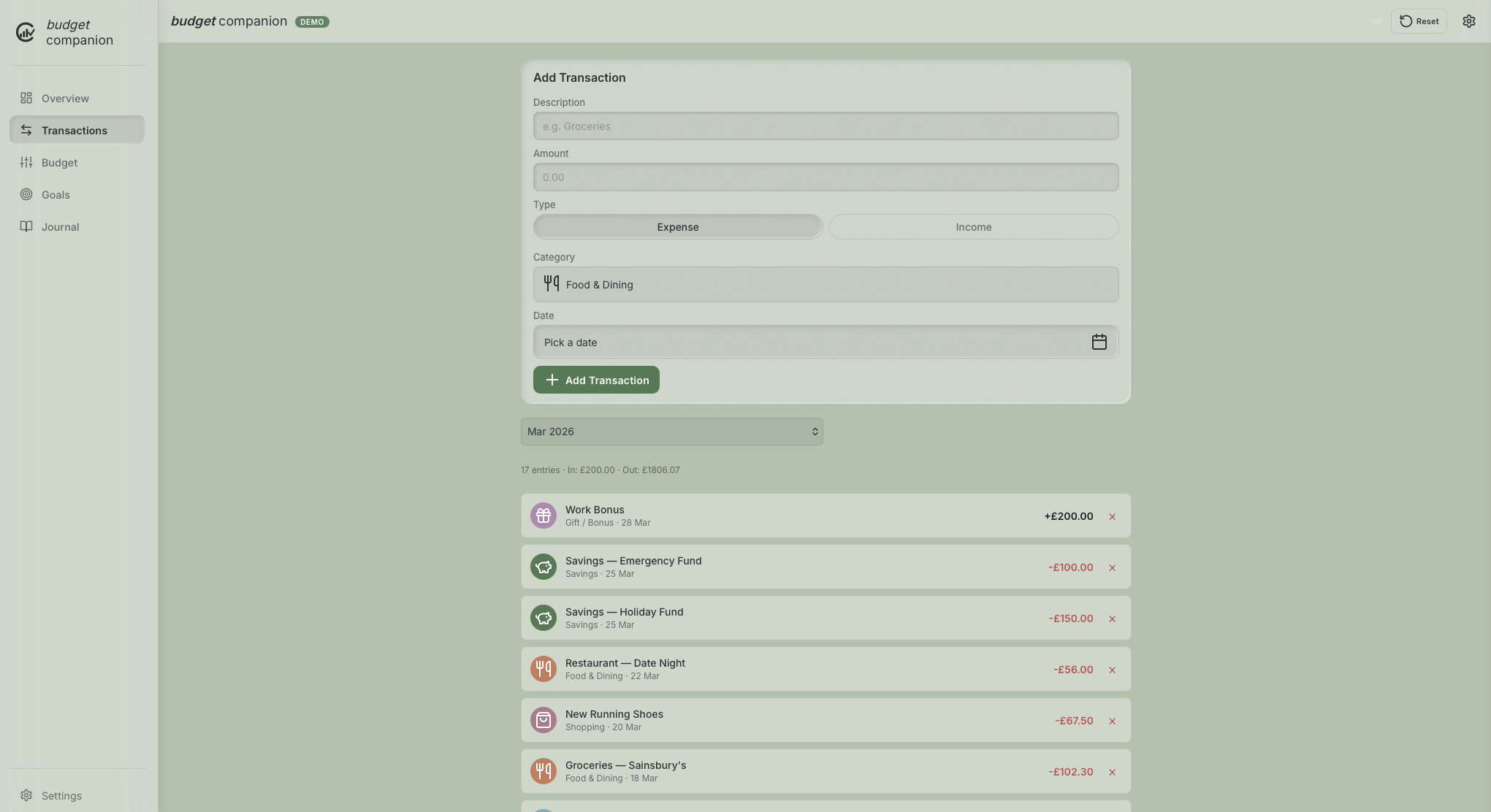
Transactions LogAdd income and expenses quickly from a slide-up drawer. Search and filter your history in seconds.
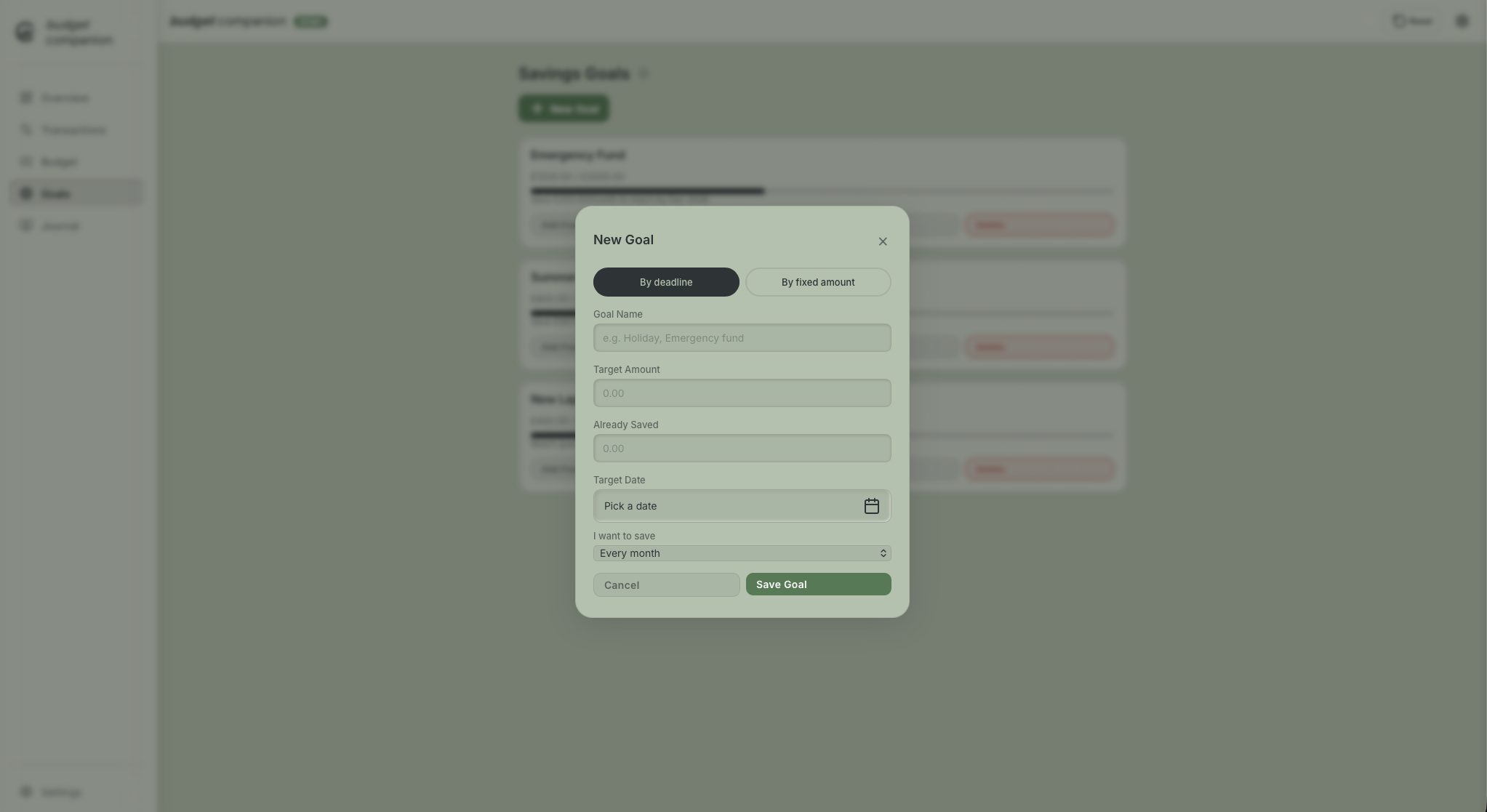
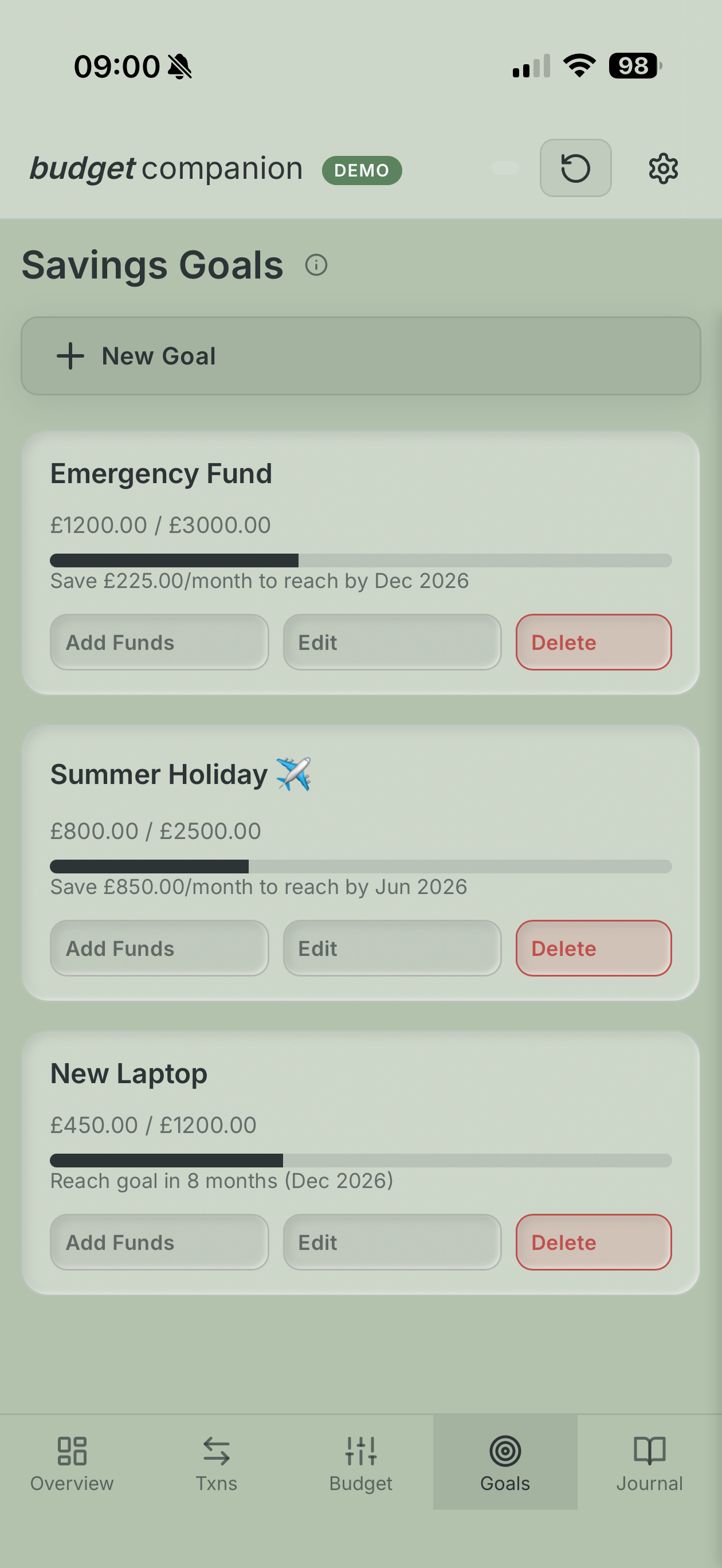
Saving GoalsCreate goals like a holiday fund, emergency savings or a new laptop, then track your progress with a visual ring.
Visual Progress ChartsInteractive bar graphs and progress rings that respond to your touch. Your finances made beautiful.
4 Matte ThemesSage, Sand, Dusk and Terracotta, each with a dark mode. Pick the one that suits your mood.
Simple Setup
On your phone in under a minute.
No app store. No account creation. No waiting. You buy it on Etsy, get a link, and it's on your phone the same day.
Purchase on Etsy
Buy once, own forever. You'll receive an email with a PDF containing your personal access link. No recurring charges, ever.
Open the Link
Tap the link on your phone to open the planner in your browser. No download, no signup needed.
Add to Home Screen
Tap "Add to Home Screen" and the app icon appears alongside your other apps. It opens full-screen with no browser bars.
Step-by-step
How to add it to your device
These planners are Progressive Web Apps. They live in your browser but install just like a real app on any device. Here's exactly how to do it.
1
Open in Safari
Open your access link in Safari. Chrome on iPhone doesn't support adding to the home screen the same way.
2
Tap Share
Tap the Share button (the square with the upward arrow) at the bottom of the screen.
3
Add to Home Screen
Scroll down the share sheet and tap "Add to Home Screen." You may need to tap "More" to find it.
4
Tap Add
Tap "Add" in the top-right corner. The Companion icon will appear on your home screen just like a real app.
The app icon will appear on your home screen with the Companion Planners branding. Tap it to open full-screen with no browser bars or distractions. It also works offline once installed.
1
Open in Chrome
Open your access link in Google Chrome on your Android device.
2
Tap the Menu
Tap the three-dot menu in the top-right corner of Chrome.
3
Install App
Tap "Install App" or "Add to Home Screen." Chrome may also show a pop-up at the bottom automatically.
4
Confirm
Tap "Add" to confirm. The icon appears on your home screen, ready to use.
On some Android devices, Chrome shows an "Install" button directly in the address bar. Look for a small download icon and tap it for the fastest install experience.
1
Open in Safari
Open your access link in Safari on your Mac (macOS Sonoma or later).
2
Go to File Menu
Click the File menu in the macOS menu bar at the top of the screen.
3
Add to Dock
Select "Add to Dock…" from the File menu. Confirm the name and click Add.
4
Launch from Dock
The Companion icon appears in your Dock. Click it any time to open your planner in its own clean, distraction-free window.
On a Mac, the Companion opens in its own window without browser toolbars. It feels like a native Mac app and shows up in Launchpad so you can find it with Spotlight too.
1
Open in Chrome or Edge
Open your access link in Google Chrome or Microsoft Edge on your Windows or Mac computer.
2
Look at the Address Bar
Look to the right of the address bar. You'll see a small install icon — three squares with a plus sign, or a computer with a down arrow.
3
Click Install App
Click the icon and select "Install App" or "Install CompanionPlanners."
4
Pin to Taskbar
The app appears in your Start Menu (Windows) or Launchpad (Mac). Right-click it to "Pin to Taskbar" for instant access.
On Windows, the app opens in its own frameless window with no browser bar, no bookmarks, just the planner. It behaves like any other installed app on your computer.
Privacy First
Your data never leaves your hands.
We built Companion Planners on a simple belief: your wedding plans and financial details are nobody's business but yours. So we made it technically impossible for us to see them.
Stored on Your Device
All your data is saved in your browser's local storage. It never leaves your phone or computer unless you choose to move it yourself.
Works Offline
No internet connection needed once installed. Add expenses mid-flight or update your guest list on the underground. Everything just works.
Zero-Knowledge Design
We have no servers, no databases, no analytics. We cannot see your data, not because of a policy, but because it was never sent to us in the first place.
Your Phone
Data lives in local storage. Works offline, instant.
→
Export Backup
Download a .json file from Settings any time. Takes 2 seconds.
→
Your Cloud Folder
Save the backup to iCloud, Google Drive or Dropbox. Your choice.
→
Any Other Device
Open the planner, tap Restore, and pick your backup file. That's it.
One thing to remember
Because your data lives on your device, clearing your browser cache will erase it. We recommend saving a backup after every major planning session. It takes just a tap from Settings. Store the file in iCloud or Google Drive and you can restore it on any device, any time.
Try Before You Buy
Give it a spin, free.
Both companions have a full demo. Load it on your phone, add it to your home screen and try everything before you buy. No email needed.
Wedding Companion
Explore the guest list, seating planner, budget tracker, vendor manager and more. Fully interactive demo.
Most digital planners are either clunky Excel files or expensive apps that sell your data. Companion Planners are something different entirely.
Feature
Spreadsheet
Subscription App
Companion Planners
Works on your phone properly
Works offline
No monthly fee
Your data stays private
Beautiful, touch-friendly interface
Live calculations & visual charts
No app store needed
Works on desktop and mobile
Questions
You asked, we answered.
You'll receive a PDF from Etsy with your personal access link. Open that link in your browser and your planner is ready to use straight away, no download, no installation, no setup. To get the full app experience with no browser bars, add it to your home screen by following the steps above. It takes about 30 seconds.
Yes. Once you've opened the planner and added it to your home screen, it works completely offline. You can add transactions, update your guest list or check your checklist with no connection at all. The app uses your browser's service worker technology to cache everything locally.
From the Settings () menu inside the planner, tap "Download Backup." This saves a small .json file to your device. On your new device, open the planner, go to Settings, and tap "Restore from Backup." Select the .json file and all your data will appear instantly. If you keep your backup file in iCloud, Google Drive, or Dropbox, you can restore it anywhere, anytime.
Yes, but data doesn't sync automatically between devices. That's intentional, to keep everything private and offline-friendly. The simplest workflow is to make changes on your main device, export a backup, save it to your cloud folder (iCloud, Google Drive, Dropbox), then restore from that backup on your other device. Takes about a minute and keeps your data entirely under your control.
Yes, clearing your browser cache or history will erase the locally stored data. This is why we recommend downloading a backup regularly (it's in Settings > Download Backup). If you store that backup in your iCloud or Google Drive folder, you can always restore your full planner in seconds. Think of it like saving a document. Once you're in the habit, it becomes second nature.
A spreadsheet is a grid. You have to design your own layout, remember all your formulas and zoom in on your phone just to read it. Wedding Companion is a fully designed, touch-friendly app with dedicated sections for guests, seating, budget, vendors and checklist. Everything updates automatically. The interactive seating planner alone would take days to replicate in a spreadsheet.
The planners work in any modern browser: Chrome, Safari, Firefox and Edge. For the best install experience use Safari on iPhone, Chrome on Android, and either Safari or Chrome on desktop. If you're not sure, the demos are a great way to test everything before purchasing.
Yes! Both companions include a dark mode for every colour theme. Toggle it from the Settings menu () inside the app. The dark themes use warm, deep tones rather than harsh black, so they're easy on the eyes for late-night planning sessions.
We're always happy to help. Contact us on Etsy and we'll get back to you quickly. We can walk you through the install process step by step if needed.